GeneralDecember 11, 2025

Best Chrome extensions for video learning

A practical list of the best chrome extensions for productivity. For students, developers, and learners who want to focus, learn faster, and get more done.

By HoverNotes Team20 min read
Best Chrome extensions for video learning

Watching hours of video tutorials but struggling to remember what you learned? You're not alone. Video learning has a retention problem. We watch, but the information doesn't stick. The Chrome Web Store is full of "productivity" extensions, but most don't solve this specific, critical issue for students, self-learners, and knowledge workers.

This guide cuts through the noise. We've curated a practical list of Chrome extensions focused on making your video learning more efficient and effective. You'll find tools for taking better notes, controlling video playback, and blocking distractions. The goal isn't just to watch more, but to learn more from what you watch.

Each extension here solves a real problem. We'll cover what it does, who it's for, and the practical pros and cons. We'll look at tools that help you capture not just what's said, but what's shown—the code snippets, diagrams, and on-screen demonstrations that transcripts alone miss. Let's get to the tools that will help you turn passive watching into active learning.

1. HoverNotes

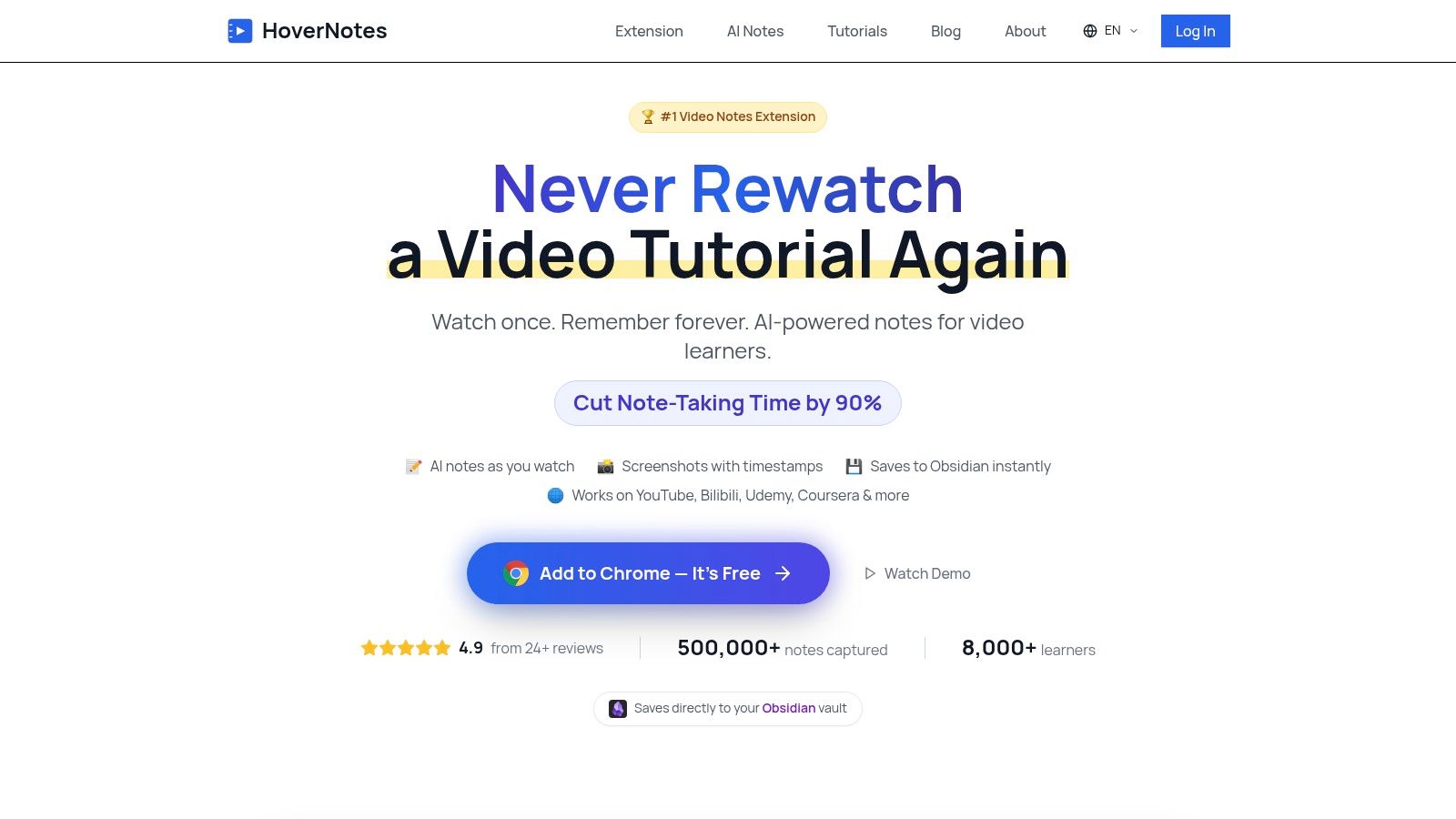
Manually taking notes from videos is a pain—constantly pausing, rewinding, and trying to capture screenshots that end up scattered and out of context. HoverNotes is a Chrome extension that watches videos with you, generates AI notes, and saves them as Markdown directly to your file system. It’s built to solve the retention problem by making note-taking seamless.

Unlike tools that only parse transcripts, HoverNotes watches the video frame-by-frame, just like a human would. This means it captures visual context that transcript-only tools miss, like diagrams, code on screen, and demonstrations—critical for technical subjects.

HoverNotes extension showing a video player next to structured, timestamped notes with screenshots.

Its workflow is practical. Every screenshot includes a clickable timestamp—one click returns you to that exact moment in the video. The "video mode" blocks site ads and puts your notes right next to the content so you can focus. For Obsidian users, it's a perfect fit. Notes save as .md files directly to your Obsidian vault, so you own your knowledge forever. Notes also copy-paste cleanly into Notion with formatting intact. Even without AI, you can use the editor and screenshot tools for free. You can get started with the HoverNotes Chrome extension; the free plan gives you 20 minutes of AI credits without needing a credit card.

Key Features:

  • Visual AI Analysis: Watches the video to capture on-screen code, diagrams, and other visuals.
  • Local-First Markdown: Saves notes as .md files directly to your computer, perfect for Obsidian or Logseq.
  • Timestamped Screenshots: Click any screenshot to jump back to that precise moment in the video.
  • Universal Video Support: Works anywhere there's a video—course platforms like Udemy and Coursera, YouTube, and even local video files.
  • Distraction-Free Mode: Hides ads and puts the video and your notes side-by-side.
ProsCons
Captures visual context that audio-only transcripts miss.Minor UX friction reported, such as occasionally needing to re-select an Obsidian vault path.
Local-first Markdown files mean you own your data. No cloud sync required.Heavy AI usage may be constrained by limits on free or lower-tier plans.
Timestamped screenshots save hours of re-watching content.Some users report occasional duplicate sections in AI-generated notes.
Works on any website with video, not just a few major platforms.Lacks a visual marker on the video timeline to indicate moments you've already captured.
The editor, screenshots, and distraction-free mode are free to use without AI.

2. Chrome Web Store – Productivity Collection

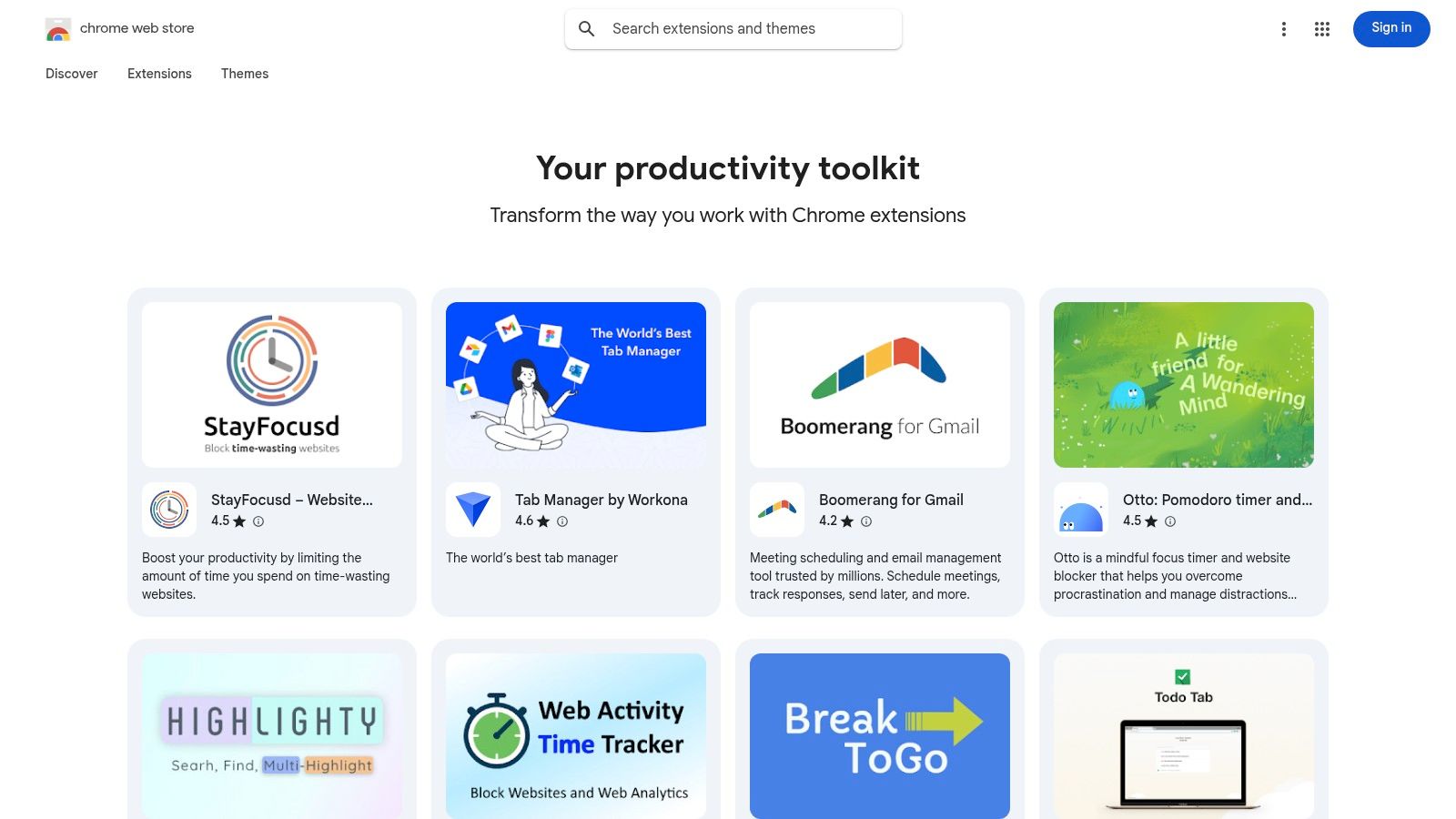
Before diving into individual extensions, the best place to start any search is the source: Google's official Chrome Web Store. It's the most secure and direct way to find tools for video learning and productivity. The store provides crucial info like user counts, ratings, last updated dates, and required permissions, which helps you vet a tool's quality and safety.

Chrome Web Store – Productivity Collection

The platform’s curated "Your productivity toolkit" collection is particularly useful, highlighting editor-endorsed extensions for focus, task management, and more. While the sheer volume of options can be overwhelming and requires careful checking to avoid look-alike clones, it remains the definitive and safest hub. For students and lifelong learners, starting here ensures access to a wide variety of tools.

Ideal ForStudents, professionals, and anyone looking to enhance their browser's functionality for learning.
Key FeatureCurated collections and detailed metadata for vetting extensions' safety and quality.
ProsSafest installation source, huge selection, detailed user reviews and ratings.
ConsVariable quality across listings; requires careful review to avoid clones or outdated tools.
AccessVisit Website

3. Product Hunt – Chrome Extensions Topic

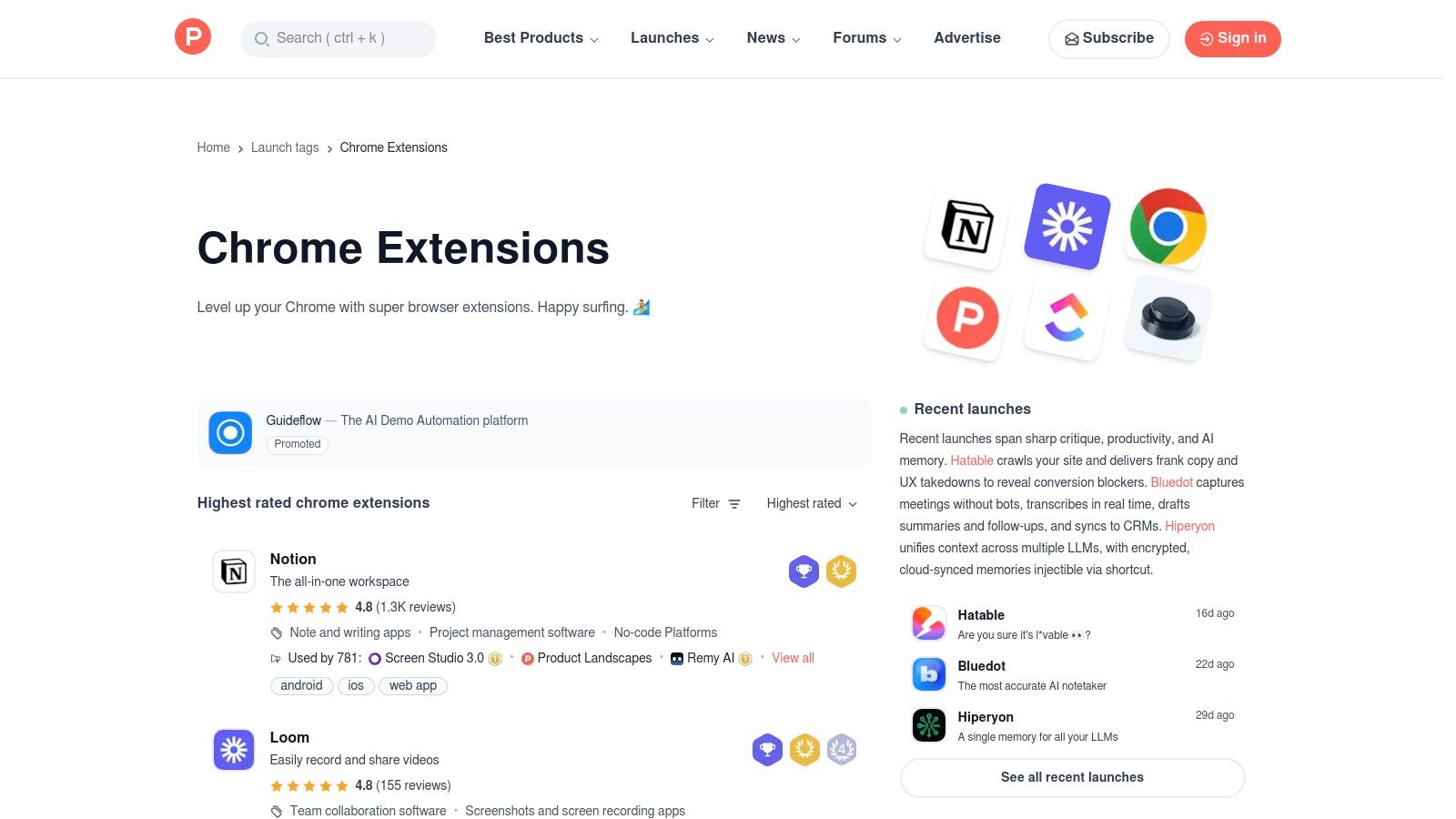
If the Chrome Web Store is the established library, Product Hunt is where you find the new and interesting stuff first. It’s a community-driven platform where developers showcase their latest tools, including many innovative Chrome extensions for learning before they become well-known. This makes it a great place to find unique tools that solve niche problems.

Product Hunt – Chrome Extensions Topic

The value comes from real-world feedback in the form of upvotes and comments. You can often engage directly with the creators and see what early adopters are excited about. While it’s not an installation source itself (it links to the Web Store), it's the best place to discover promising new tools for focused work and knowledge management, especially for those who are skeptical of marketing hype and prefer peer validation.

Ideal ForEarly adopters and learners looking for innovative or newly launched extensions.
Key FeatureCommunity upvotes and comments that signal promising new tools and provide early feedback.
ProsExcellent for discovering new and indie productivity tools, direct interaction with creators.
ConsNot a direct store; listed products can be less mature or still in beta.
AccessVisit Website

4. G2 – “Best Chrome Extensions” Collections/Guides

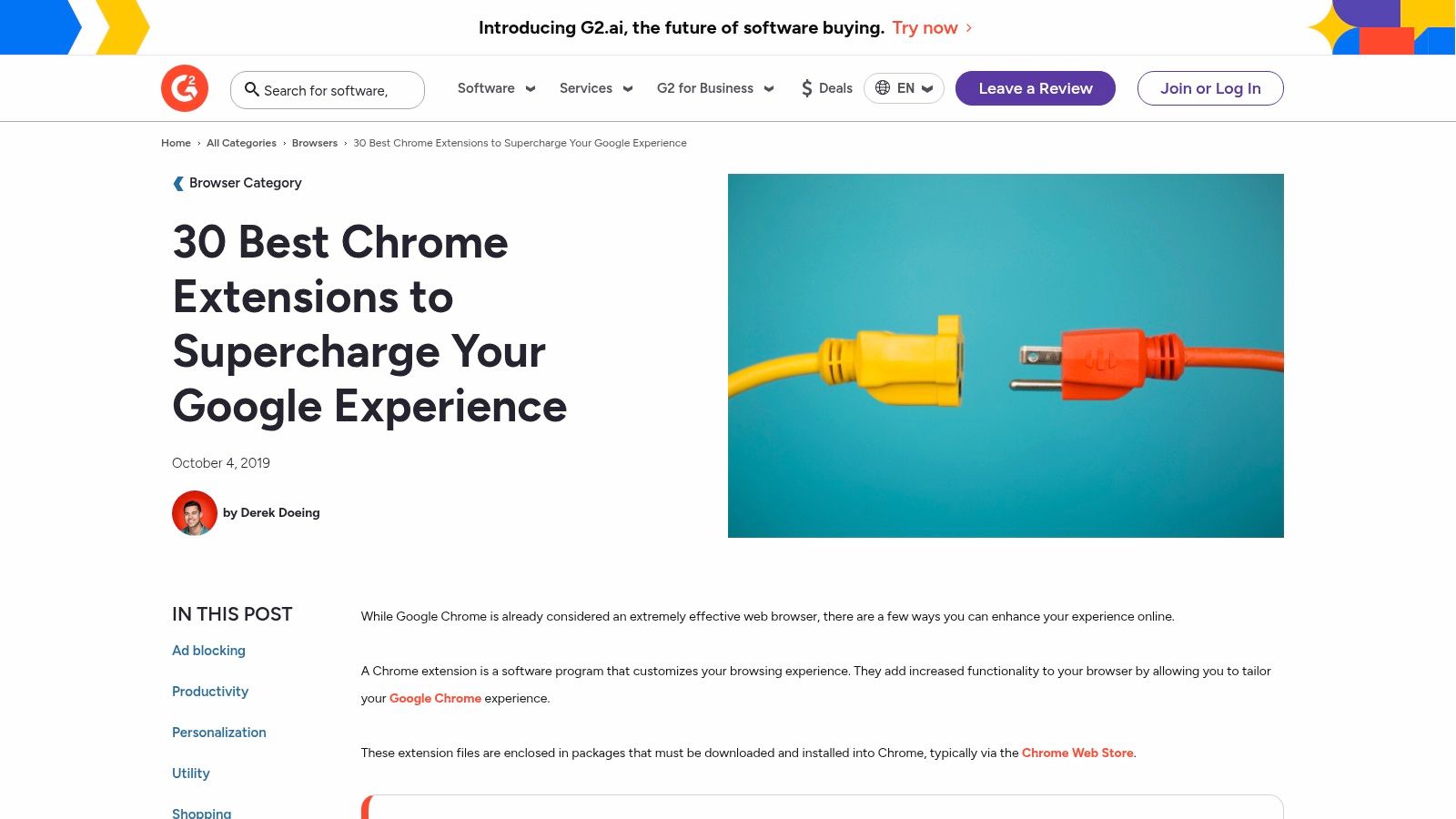
For those who value peer-reviewed credibility, G2 is a good resource for finding productivity extensions. Unlike a standard app store, G2's platform frames its recommendations with business use cases and aggregated reviews from verified professionals. This helps you understand how a tool performs in a real-world environment.

G2 – “Best Chrome Extensions” Collections/Guides

Their editorial guides, such as "30 Best Chrome Extensions," categorize tools by function like tab management or site blockers, making it easy to find solutions for specific pain points. While the lists are curated for a business audience, many of the productivity tools are equally valuable for students and self-learners. The main drawback is that information can sometimes lag behind the latest product updates, so it's best used for shortlisting before visiting the official Chrome Web Store.

Ideal ForProfessionals, teams, and anyone wanting to vet tools based on business user reviews.
Key FeatureEditorial roundups and guides backed by aggregated, verified user review data.
ProsProvides business-centric credibility, helpful categorization by productivity subcategory.
ConsInformation can lag behind the latest product versions and is less focused on individual learners.
AccessVisit Website

5. Grammarly (Chrome extension)

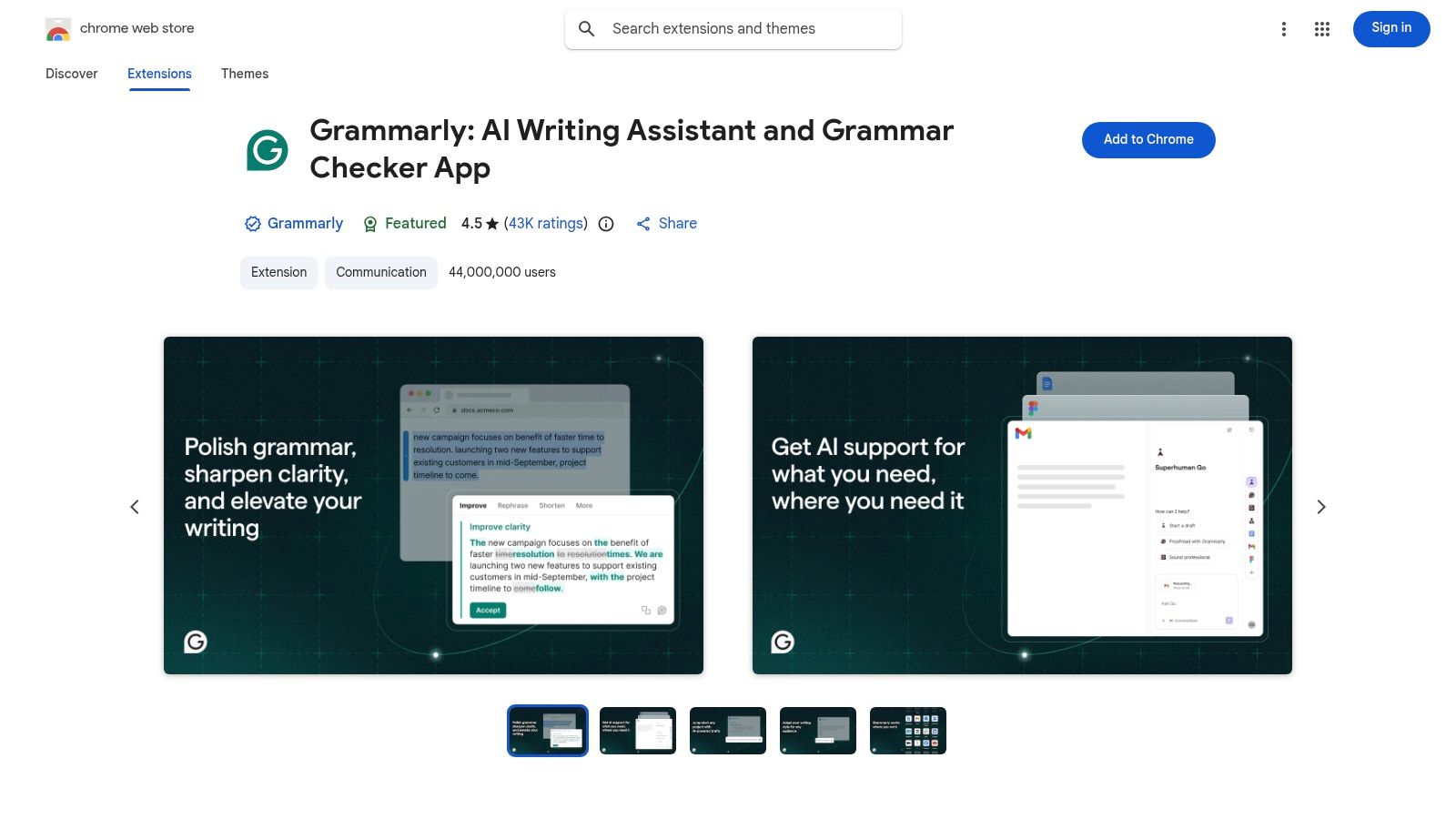
For anyone producing written content—from notes on a lecture to essays and emails—Grammarly is an essential tool. It goes far beyond a simple spell-checker, offering real-time suggestions to improve correctness, clarity, and tone. It ensures your communication is polished and effective without constant manual proofreading. It integrates seamlessly across countless websites where you take notes or write, including Notion and Google Docs.

Grammarly (Chrome extension)

The extension provides guidance directly where you type, which saves significant time. While the free version is robust for catching common errors, the premium plans unlock features like generative AI for drafting and rewriting, advanced tone adjustments, and plagiarism detection. For learners building a knowledge base from video content, Grammarly ensures the notes you create are clear and well-written.

Ideal ForStudents, professionals, writers, and anyone who needs to produce clear and error-free text online.
Key FeatureReal-time AI-powered suggestions for grammar, spelling, style, and tone directly in your browser.
ProsExcellent in-editor guidance across many sites, strong free version, easy to use.
ConsThe most useful features are behind a paid subscription; broad permissions are required for in-page analysis.
AccessVisit Website

6. Todoist – Task & Project Management

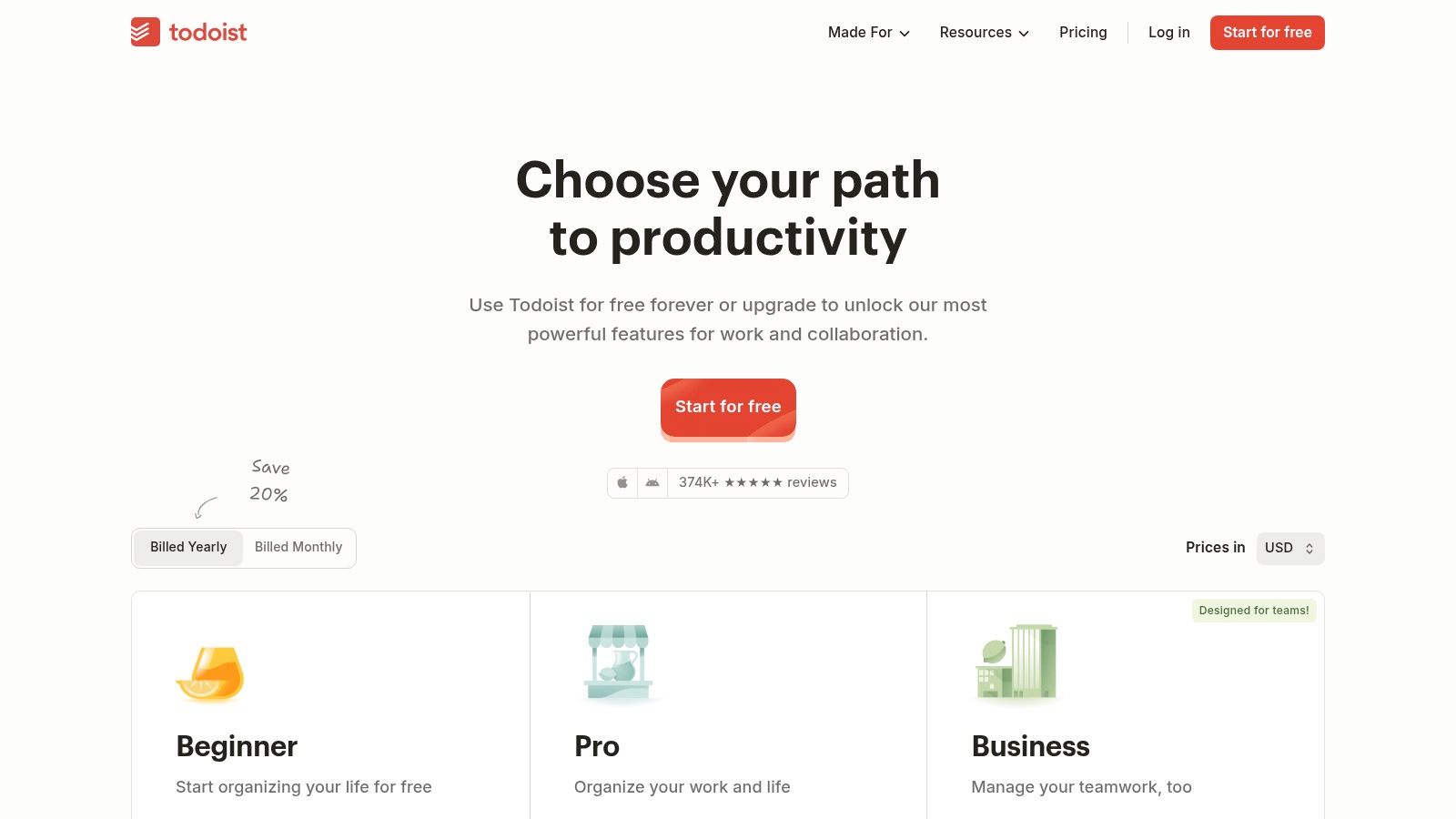
Todoist is a solid task manager, and its browser extension is key to its usefulness. It excels at capturing tasks the moment they arise. The extension allows you to add websites as tasks in two clicks or highlight any text on a page and send it directly to your inbox for later. This turns your browser into a practical part of your planning system.

Todoist – Task & Project Management

Its strength is its simplicity. The Quick Add feature understands natural language, so typing "Watch machine learning lecture every Tuesday #Coursera" automatically creates a recurring task in the right project. For students managing multiple video courses and assignment deadlines, this immediate capture workflow is invaluable. While advanced features like reminders require a paid plan, the core functionality is excellent for organizing your learning schedule.

Ideal ForStudents, professionals, and anyone needing a system to capture and organize tasks directly from the web.
Key FeatureNatural language Quick Add and the ability to turn any website or text into a task instantly.
ProsFast and frictionless task capture, clean interface, and apps on every platform.
ConsCore features like reminders require a paid plan.
AccessVisit Website

7. Loom – Screen Recording & Async Video

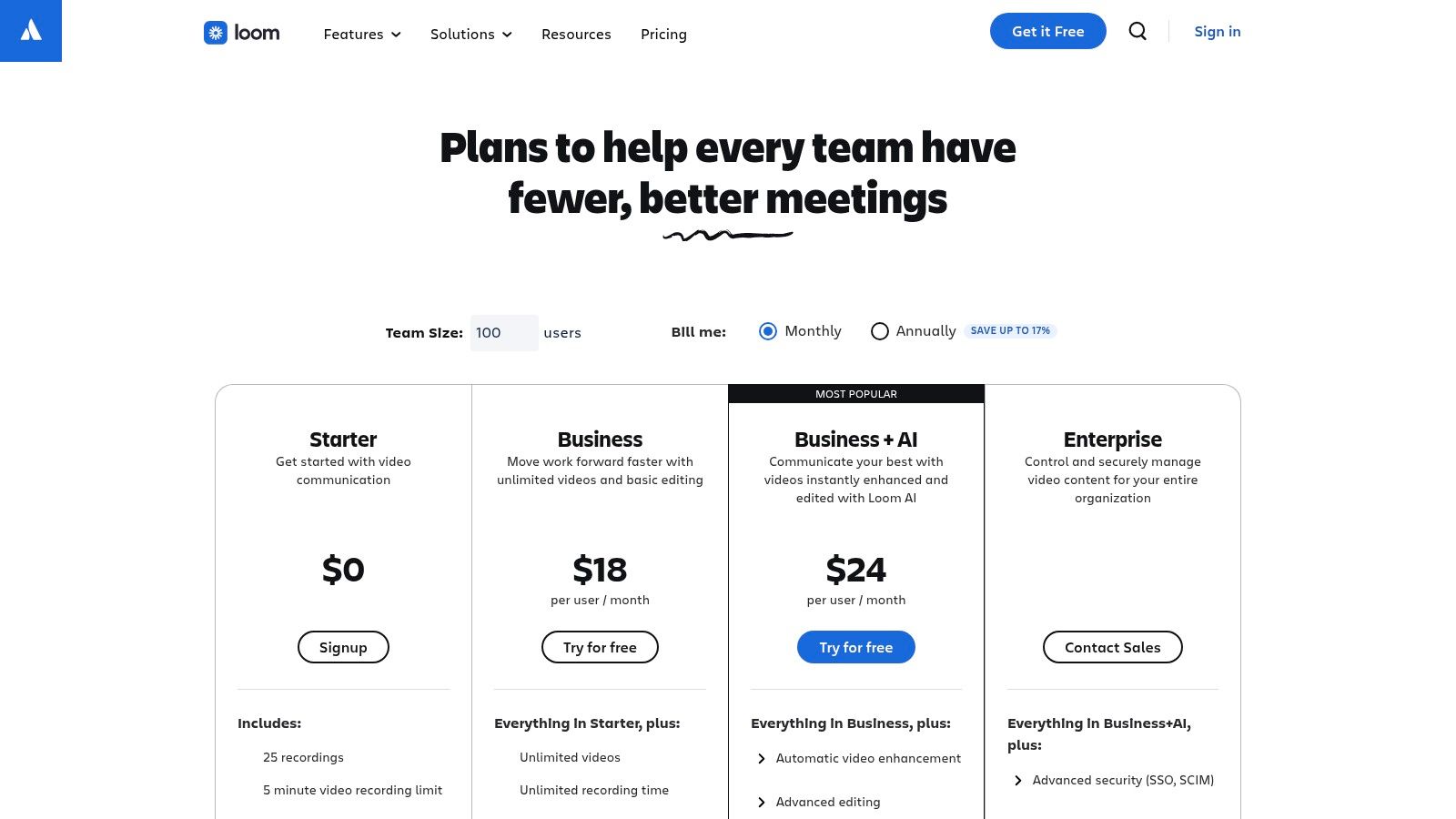
Loom makes screen recording simple and fast. Instead of typing a long email or scheduling a meeting, you can record your screen, camera, and microphone with a single click and instantly share a link. This workflow is perfect for creating short tutorials, asking a question about a technical problem, or providing feedback on visual work.

Loom – Screen Recording & Async Video

The platform streamlines the entire process from recording to sharing, hosting the video and providing comments and notifications. This makes it a powerful tool for clarifying complex topics visually. While the free version is capable, advanced features like AI-powered summaries are reserved for paid tiers. For learners who need to create their own video content or collaborate with study groups, Loom is a practical choice. For automated analysis of existing videos, you might want to explore a dedicated AI video summarizer.

Ideal ForRemote teams, educators, students, and anyone needing to provide quick visual feedback or explanations.
Key FeatureOne-click recording of screen, camera, and mic that generates an instantly shareable link.
ProsExtremely fast recording-to-share workflow, excellent for async communication, widely used.
ConsAdvanced editing and AI features require a paid subscription; the extension is Chrome-specific.
AccessVisit Website

8. Raindrop.io – Bookmark & Knowledge Manager

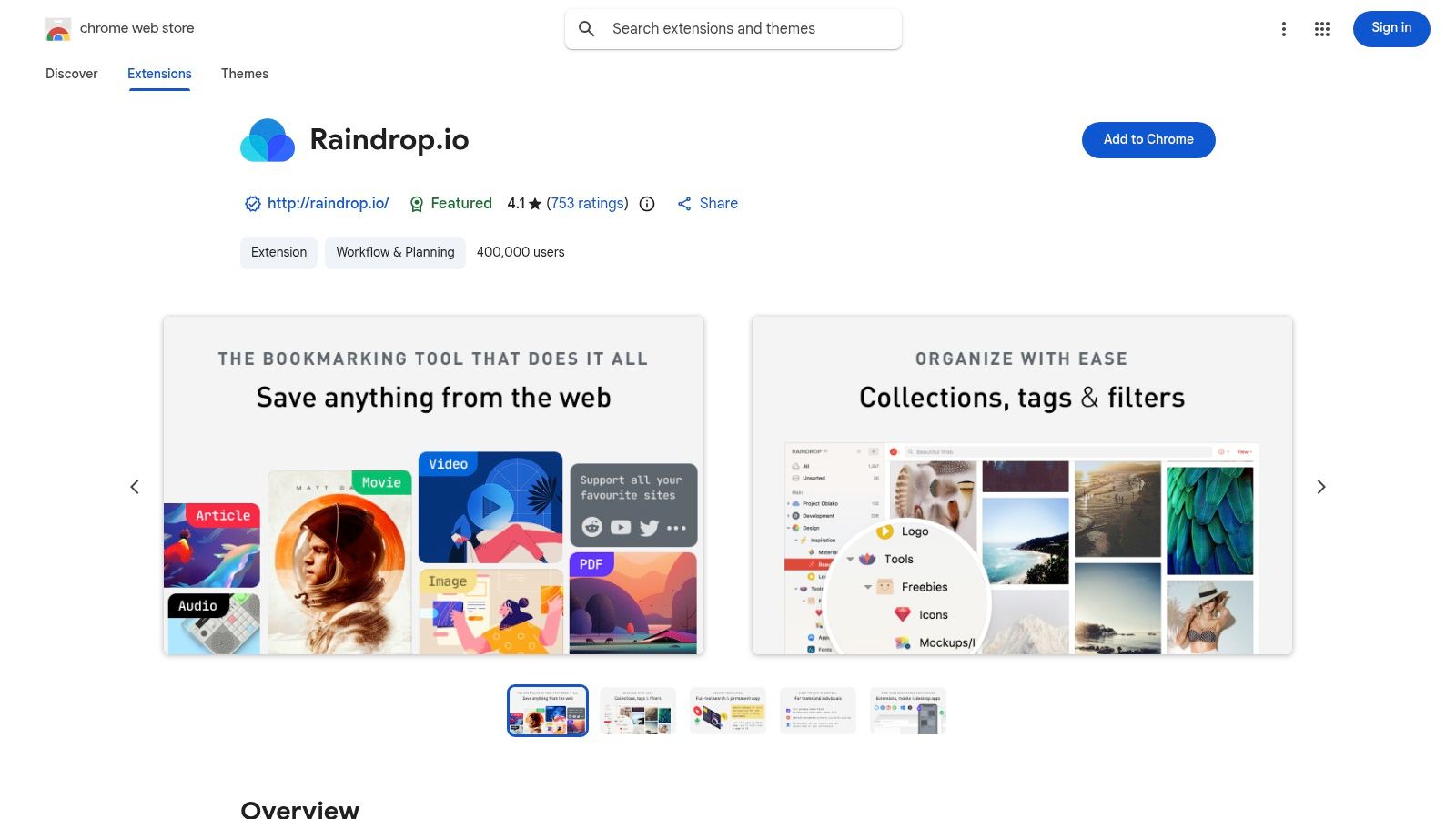
Raindrop.io elevates the simple bookmark into a part of a personal knowledge system. Instead of a messy list, it provides a visually organized library where you can save articles, videos, PDFs, and images from your learning journey. Its robust tagging and collections system turns your saved links into a searchable, curated database for research and long-term projects.

Raindrop.io – Bookmark & Knowledge Manager

The extension's side panel allows you to access and save content without leaving your current tab. It also integrates highlighting and annotation, letting you capture key insights. While it excels at collecting resources, combining it with a dedicated note-taker for video creates a more complete learning workflow. The full-text search across all your saved content, including the text within PDFs and web pages, makes finding anything you've ever saved very efficient.

Ideal ForResearchers, students, and anyone building a long-term personal knowledge base from web content.
Key FeatureAdvanced organization with collections, tags, filters, and full-text search across all saved content.
ProsExcellent cross-platform sync, visually appealing interface, powerful search and organization tools.
ConsCore features like permanent copies of pages and nested collections require a Pro subscription.
AccessVisit Website

9. Instapaper – Save-to-Read-Later

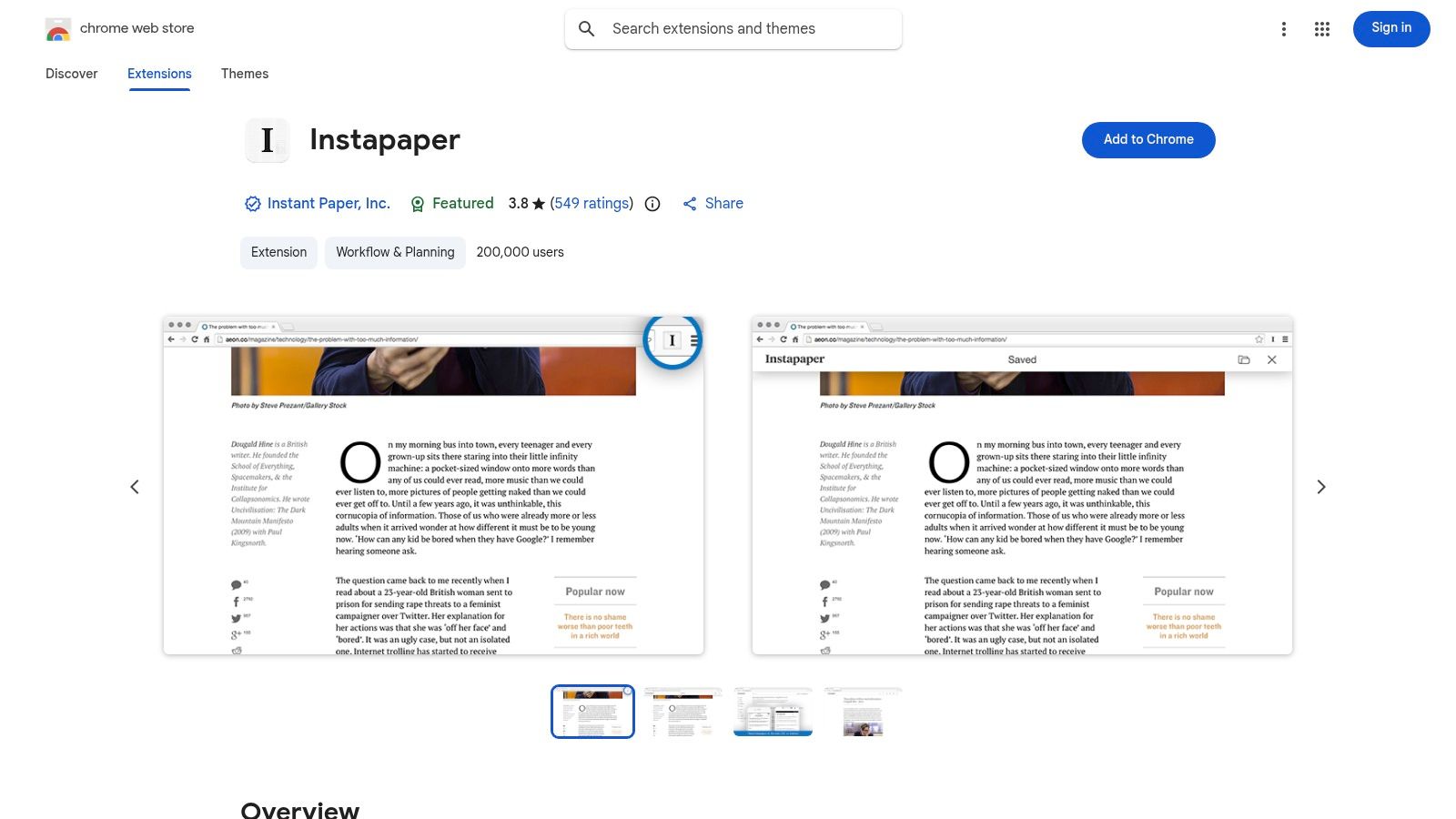
For learners who frequently gather articles and research papers, Instapaper provides an essential service: decluttering the web for focused reading. Its Chrome extension lets you save any webpage with a single click, sending a stripped-down, text-and-image version to your reading queue. This transforms chaotic web pages into a clean format that’s perfect for deep reading without the distraction of ads or pop-ups.

Instapaper – Save-to-Read-Later

Instapaper stands out for its simplicity and excellent cross-platform synchronization, including a Kindle integration that automatically sends your articles to your e-reader. While its core function is saving articles, its premium version unlocks features like full-text search and unlimited notes, turning it into a lightweight research archive. For students compiling sources or developers saving tutorials, it’s a reliable way to build a reading list you can access anytime, even offline.

Ideal ForResearchers, students, and anyone who wants to read web content without distractions.
Key FeatureOne-click saving to a clean, ad-free reading queue with powerful cross-platform and Kindle support.
ProsSimple and reliable saving, excellent for distraction-free consumption, strong Kindle integration.
ConsAdvanced features like full-text search of saved articles require a paid Instapaper Premium subscription.
AccessVisit Website

10. LastPass – Password Manager & Autofill

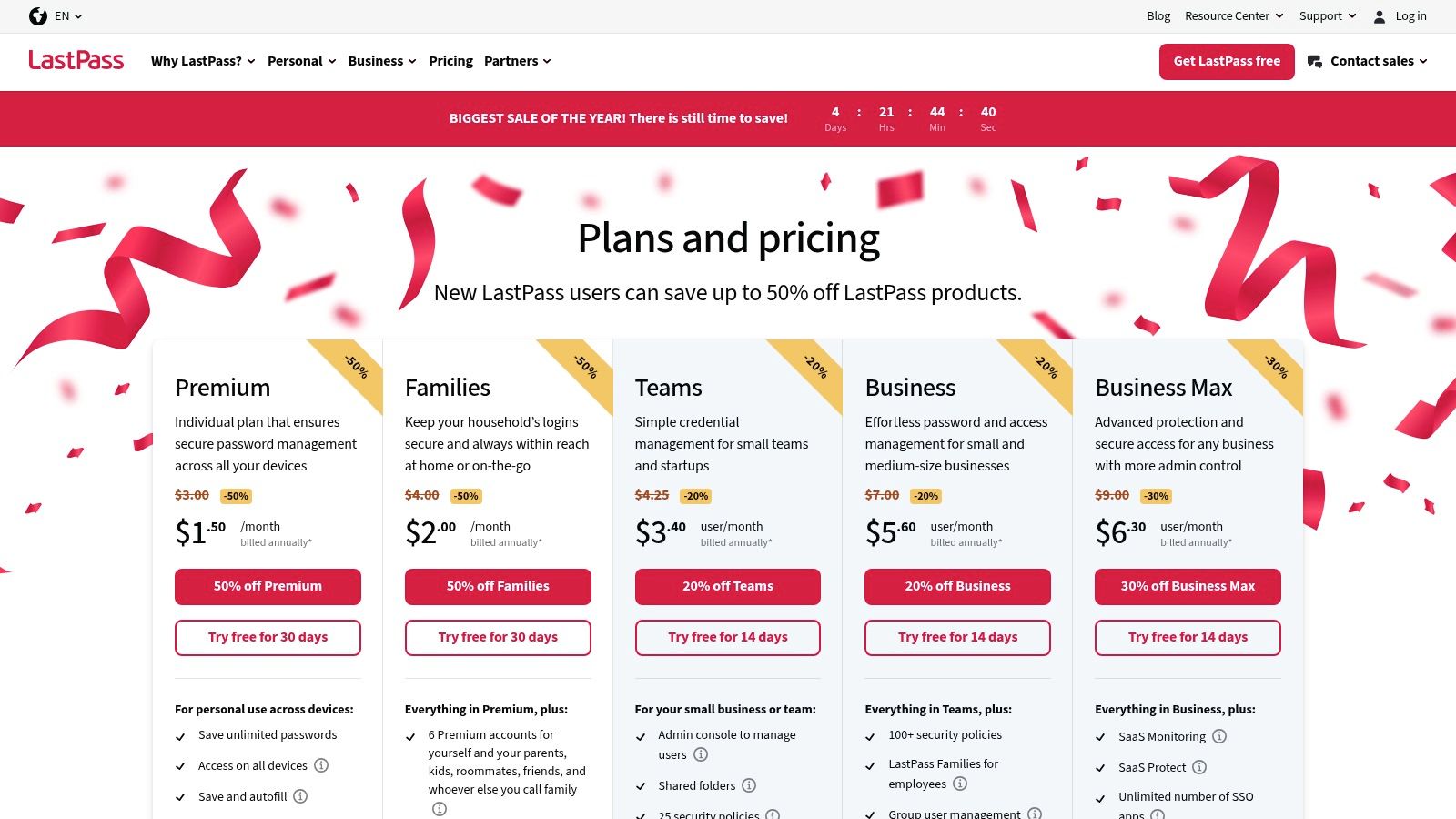
Forgetting passwords or using the same weak one everywhere is a mental drain and a security risk. LastPass automates this process by securely storing your credentials and autofilling them across the web. This simple act of automating logins saves time and mental energy, eliminating a common friction point when accessing different learning platforms.

LastPass – Password Manager & Autofill

While many password managers exist, LastPass is a mature and widely-used option with robust autofill capabilities. For learners juggling dozens of accounts for course platforms, software tools, and research sites, it is indispensable. The ability to generate complex, unique passwords for each service without having to remember them frees you to focus on learning, not account access.

Ideal ForStudents, professionals, and anyone managing numerous online accounts across multiple devices.
Key FeatureSecure password vault with a strong password generator and reliable one-click autofill.
ProsExcellent autofill and sharing features, available on all major browsers and mobile platforms.
ConsThe best cross-device syncing features require a paid subscription; free tier is more limited.
AccessVisit Website

11. Momentum – New‑Tab Productivity Dashboard

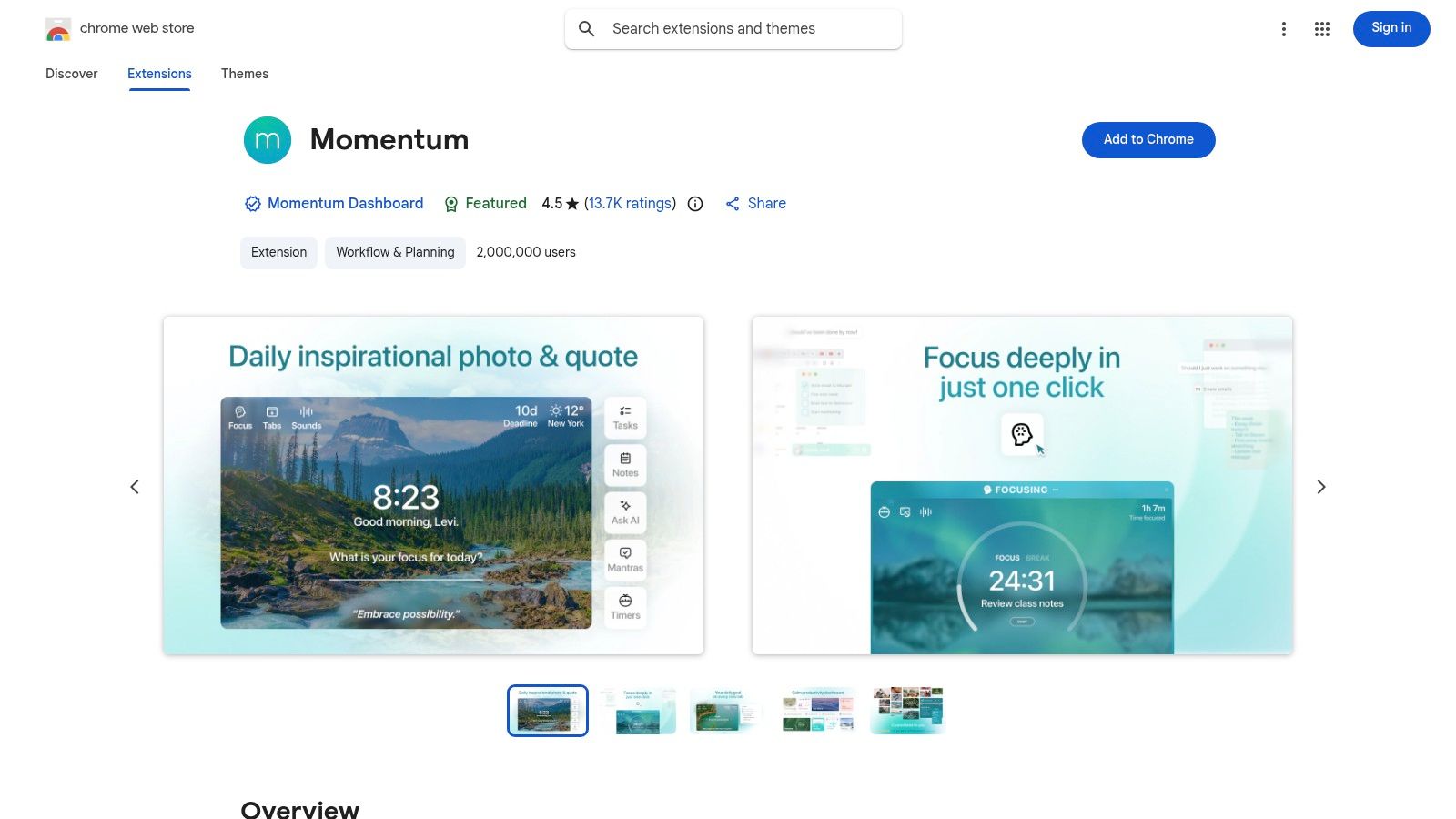
Momentum transforms your distracting new tab page into a calm, focused dashboard. Instead of a search bar, you're greeted with a nice photo and a simple prompt asking for your main focus for the day. This gentle nudge helps re-center your attention each time you open a tab, preventing mindless browsing and keeping your primary goal top-of-mind. It's a useful tool for tackling distraction at its source.

Momentum – New‑Tab Productivity Dashboard

The extension’s strength is its simplicity. The free version includes the daily focus, a basic to-do list, and weather updates. While more powerful features like integrations with task managers (Asana, Todoist) are locked behind a paid plan, the core functionality provides a focus boost without any configuration. For learners, this tool can serve as a simple reminder system for study goals.

Ideal ForAnyone looking to replace the default new tab page with a gentle, aesthetically pleasing focus tool.
Key FeatureDaily focus prompt on every new tab, combined with inspirational backgrounds and quotes.
ProsBeautiful and calming interface, easy to set up, effectively reduces new-tab distractions.
ConsKey integrations and advanced features like habit tracking require a paid Momentum Plus subscription.
AccessVisit Website

12. OneTab – Tab Manager

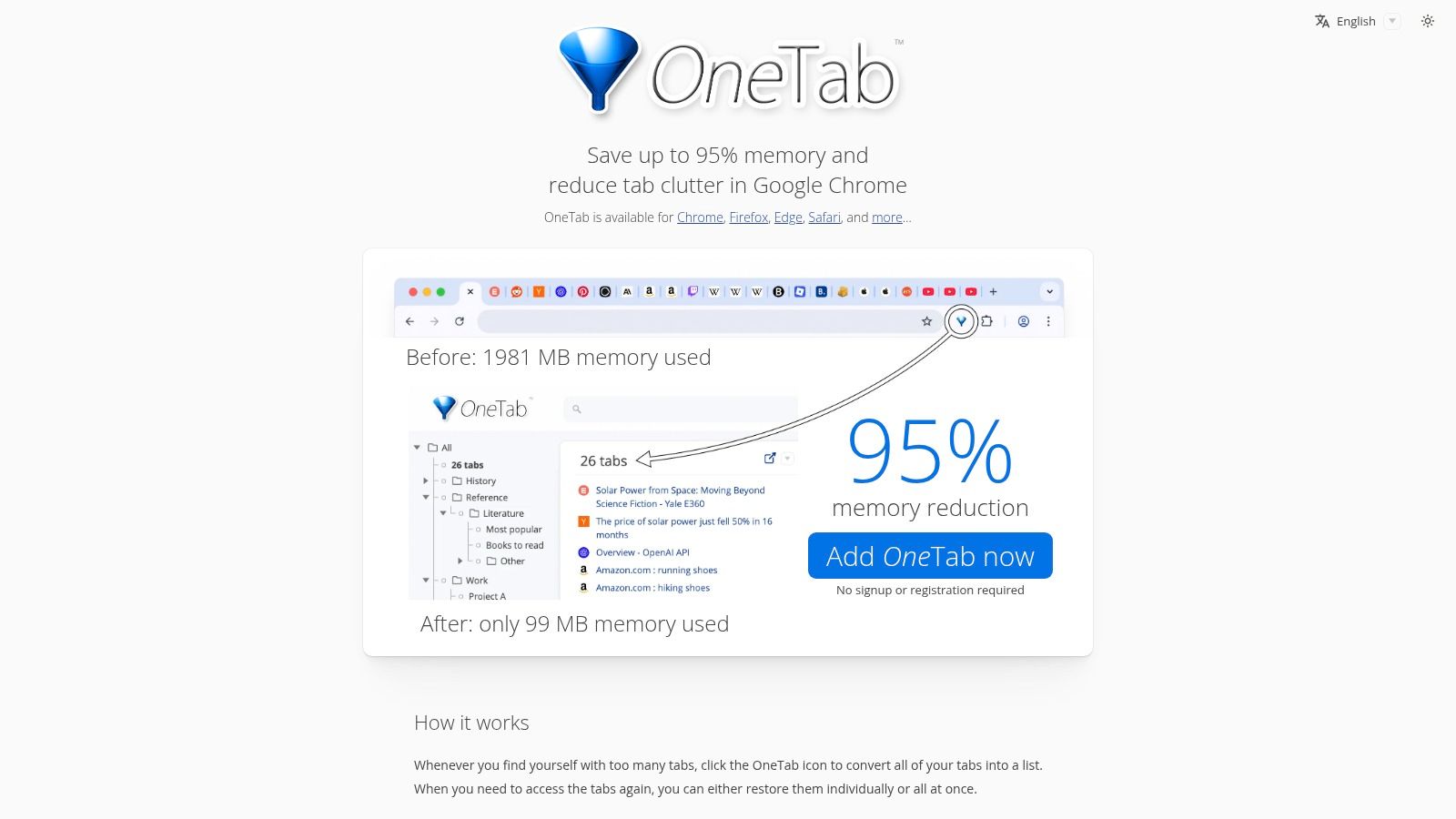
For learners who end up with dozens of tabs open after a research session, OneTab is a classic, minimalist solution to browser chaos. With a single click, it collapses all your open tabs into a single, memory-friendly list. This not only declutters your workspace but can significantly reduce your browser's RAM usage, which is helpful when your machine starts to slow down during intense study sessions.

OneTab – Tab Manager

OneTab's strength lies in its simplicity and its privacy-first approach; it doesn't send your tab URLs to any servers. You can easily restore tabs individually or all at once. While it lacks advanced features like automatic tab-grouping, its lightweight function is perfect for quickly saving a session of research or video tutorials for later without overwhelming your system.

Ideal ForStudents, researchers, and anyone who regularly accumulates too many tabs.
Key FeatureOne-click consolidation of all open tabs into a simple list to save memory.
ProsExtremely lightweight, significantly reduces browser memory usage, privacy-focused design.
ConsVery minimalist feature set; lacks advanced sorting or automatic grouping rules.
AccessVisit Website

Top 12 Chrome Productivity Extensions — Feature Comparison

ProductCore featuresUX & qualityValue / USPTarget audiencePrice / Notes
HoverNotes (Recommended)Multimodal AI notes, timestamped screenshots, Focus Mode, Obsidian/local Markdown sync, multi‑platform support4.9/5 rating, 8k+ installs, real‑time structured notes; minor UX edge cases reportedTurns videos into permanent, searchable notes; captures visuals (code, diagrams) that transcripts miss; local‑first privacyStudents, developers, PKM enthusiasts, certification & healthcare learnersFree‑forever plan; paid tiers / usage limits for heavy users
Chrome Web Store – Productivity CollectionCurated listings, one‑click installs, ratings, auto‑updates, editor badgesOfficial install source; large catalog; variable quality across listingsSafest direct place to discover and install Chrome extensionsAll Chrome users, admins, extension shoppersFree access; extension pricing varies by vendor
Product Hunt – Chrome Extensions TopicLaunches, demos, founder updates, community comments, filtersGreat for discovery and community feedback; not an install sourceEarly discovery of indie/new extensions with founder contextEarly adopters, founders, product researchersFree; links out to vendor/store pages
G2 – “Best Chrome Extensions” Collections/GuidesEditorial roundups, category browsing, aggregated reviewsBusiness‑oriented review context; useful shortlistsCredibility & use‑case framing for business buyersTeams, business evaluators, shortlist makersFree guides; may lag behind latest releases
Grammarly (Chrome extension)Real‑time grammar, clarity & tone suggestions, generative drafts, plagiarism (premium)Large user base; strong in‑editor help; broad page permissionsImproves writing quality across web appsWriters, students, professionalsFree tier; Premium subscription for full features
Todoist – Task & Project ManagementQuick‑add from pages, compact task view, sync & integrationsMature, fast capture flow; cross‑platform appsRapid browser→task capture to manage workflowsIndividuals and teams managing tasksFree basic; Pro / Business paid tiers
Loom – Screen Recording & Async VideoOne‑click screen/camera/mic recording, instant share links, viewer analyticsVery fast recording→share workflow; cloud storage for vidsAsynchronous video for updates, demos & feedbackTeams, educators, support/product demosFree tier; paid plans for advanced editing & AI
Raindrop.io – Bookmark & Knowledge ManagerSave pages/PDFs/images, tags, annotations, full‑text search, side panelPolished UI; strong organization & cross‑platform appsAll‑in‑one bookmark + knowledge capture with team featuresResearchers, PKM users, teamsFree basic; Pro for advanced features
Instapaper – Save‑to‑Read‑LaterOne‑click save, cross‑device reading queue, highlights & notes, Kindle supportSimple, reliable reading experienceDistraction‑free read‑later and annotation workflowReaders, researchers, studentsFree; Premium unlocks full search & features
LastPass – Password Manager & AutofillPassword generation, secure storage, autofill, sync, shared foldersMature password manager; broad permissions requiredCentralized secure credentials + sharing for users/teamsIndividuals, families, businessesFree tier; Premium / Teams paid plans
Momentum – New‑Tab Productivity DashboardDaily focus prompt, backgrounds, simple to‑dos, integrations (Plus)Lightweight, pleasant UX; quick setupDaily focus + minimal dashboard to boost attentionCasual productivity usersFree; Plus plan for integrations & extras
OneTab – Tab ManagerConsolidate & restore tabs, export/import lists, share as web page, privacy‑forwardExtremely lightweight; effective memory saverSimple tab overload reduction with local privacyHeavy tab users, researchersFree

Building a Smarter Browser for Learning

You now have a list of practical extensions to make learning from videos more productive. We’ve covered tools for managing tabs, organizing tasks, and saving articles. Each one can help refine your browser into a more focused environment for learning.

The point isn't to install every extension here. An overloaded browser is slow and counterproductive. Instead, identify your single biggest bottleneck and pick the tool that solves that specific problem.

For many self-learners, that bottleneck is retaining knowledge from video content. We spend hours on YouTube, Udemy, and Coursera, only to forget key concepts days later. Manually pausing to type notes is disruptive, and transcript-only tools miss critical information: the code on the screen, the diagram, or the specific technique being demonstrated. This is where a purpose-built tool is essential.

An extension designed for active video learning can fundamentally change your retention. It closes the gap between passively watching and actively engaging, ensuring the time you invest in learning pays off. By integrating note-taking directly into the video experience, you create a rich, contextual, and permanent knowledge asset. For learners who value data ownership and use platforms like Obsidian, a local-first tool is key. Your notes should be yours, saved in a universal format, and accessible forever. Choosing the right extension isn't just about short-term efficiency; it's about building a smarter system for lifelong learning.


If your biggest challenge is turning video tutorials into lasting knowledge, an extension built for that exact purpose can make a significant difference. HoverNotes generates AI-powered notes from any video, complete with timestamped screenshots, and saves them as Markdown files to your local computer, fitting perfectly into Obsidian or Notion workflows. The timestamp screenshot feature alone saves hours of rewatching.