To make a study guide from video lectures, follow a four-step workflow: watch, capture key points, organize, and review. Target core concepts and visuals, then assemble them into a clear outline with timestamped screenshots. Skipping this step costs learners up to 50% of new material within 24 hours.
Benefits Of Using A Study Guide
Watching lectures without a plan usually means scattered notes and low recall. A structured guide forces engagement and gives you a reliable reference.

-
Improved Retention
Summarizing major points and reviewing them boosts recall by 35% versus just watching. -
Faster Review
A focused outline cuts rewatch time by 40%. -
Context-Rich Notes
Timestamped images link back to the exact moment—key diagrams, formulas, and code stay intact. -
Local-First Ownership
Storing Markdown files in Obsidian keeps your notes under your control—no vendor lock-in.
Case Study
Sara used HoverNotes on a Coursera machine learning series.
She captured frame-by-frame diagrams and stored them in Obsidian.
After two weeks, her review time dropped by 40% and formula recall rose by 35%.
Whether you chart proofs in math or embed timelines in history, a flexible template up front saves hours of rework. Consistent capture transforms passive watching into active learning.
Capturing Notes From Video Lectures
Manual notes force frequent pauses. Transcript-only tools skip visuals. HoverNotes watches each frame to capture exactly what's on screen—just like a human would.
Comparison of Note-Taking Methods
| Approach | Visual Accuracy | Ease of Use | Integration |
|---|---|---|---|
| Manual Notes | Low (manual screenshots) | Medium (frequent pausing) | None |
| Transcript-Based Tools | Medium (text only) | High (auto transcripts) | Limited (text export) |
| HoverNotes | High (frame-by-frame capture) | High (AI assisted) | Obsidian, Notion ready |
Setting Up HoverNotes
- Install the HoverNotes Chrome extension.
- Sign in to unlock 20 minutes of free AI credits—no credit card needed.
- Enter distraction-free video mode to block ads and suggestions.
- Assign keyboard shortcuts for pausing, snipping, and timestamp jumps.
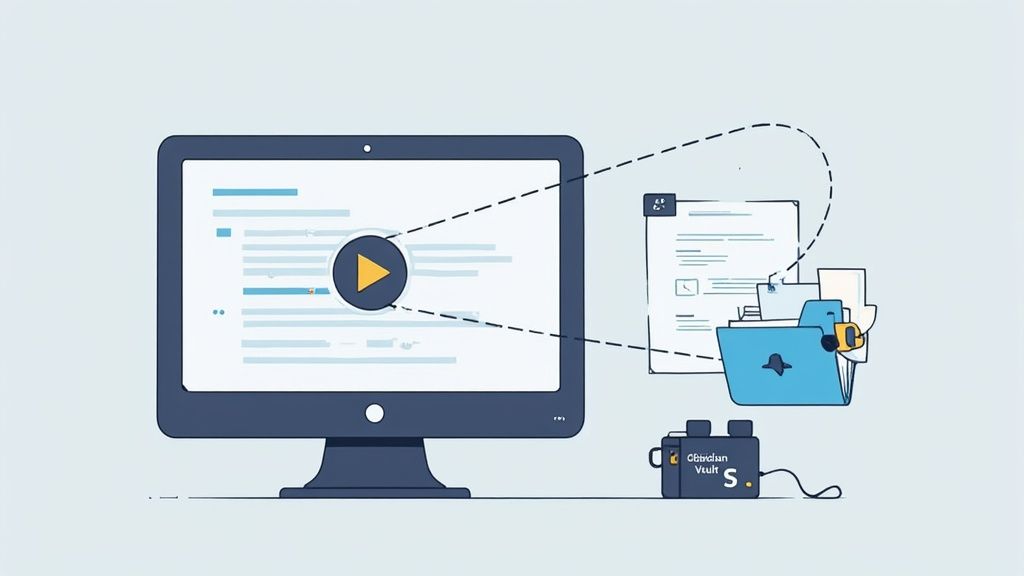
- Point your storage path to your Obsidian vault for local-first saving.
This setup cuts your capture workflow by up to 40% compared to manual pausing. HoverNotes works on YouTube, Coursera, Udemy, LinkedIn Learning, internal portals, and local video files.
Customizing Snip Regions
To grab only the code or diagram you need:
- Hover over the video and tap your snip shortcut.
- Drag a box around the target area.
- Drop the screenshot into your Markdown note.
- Tag it with
#codeor#diagramfor easy filtering.
Embedding Screenshots
In video mode, every screenshot includes a clickable timestamp—one click returns you to that exact moment.

Integrating With Obsidian And Notion
HoverNotes saves plain .md files to your vault, so you own your notes. Frontmatter tags for topic, date, or course make organization simple. Copy-paste into Notion or Google Docs and headings, code blocks, and images transfer intact.
For more on pairing visual captures with text transcripts, see Transcribing YouTube videos.
Structuring Your Study Guide
A clear framework accelerates review and preserves context. Use templates for different subjects:
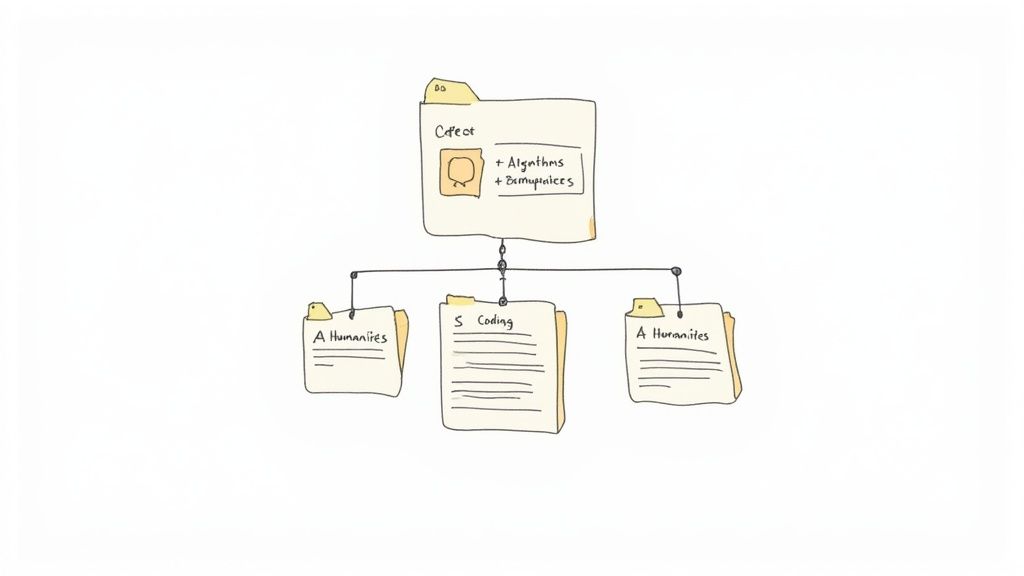
- STEM: hierarchical folders → Courses > Modules > Lectures
- Coding: topic-based sections → Functions, Algorithms, Examples
- History & Literature: chronological layout → Year > Event > Details

Standardize file names and frontmatter in Obsidian:
-
Courses
Top-level folder per course -
Subject
Subfolder per module or topic -
Lecture-Date
ISO date prefix (e.g.,2025-02-14) -
raw
Unedited transcripts and screenshots -
study-guide
Final.mdfile
Each study-guide.md starts with:
title: "Lecture 03: Algorithms"
date: 2025-02-14
tags: [computer-science, algorithms]
In Notion, mirror this with H1 for course title, H2 for topic, and H3 for subtopic. Use toggles for question blocks and embed timestamped images next to explanations.
| Feature | Cross-Reference Links | Index File |
|---|---|---|
| Navigation | Dynamic | Static list |
| Scalability | High | Medium |
| Setup Complexity | Moderate | Low |
Learn more about converting YouTube videos into notes at YouTube video to notes conversion.
How HoverNotes Fits In
Unlike tools that only parse transcripts, HoverNotes watches the video to capture what's actually on screen. Notes save as .md files in your Obsidian vault—no ads, no cloud lock-in. You move, back up, and search them without restrictions.
Scheduling Focused Sessions
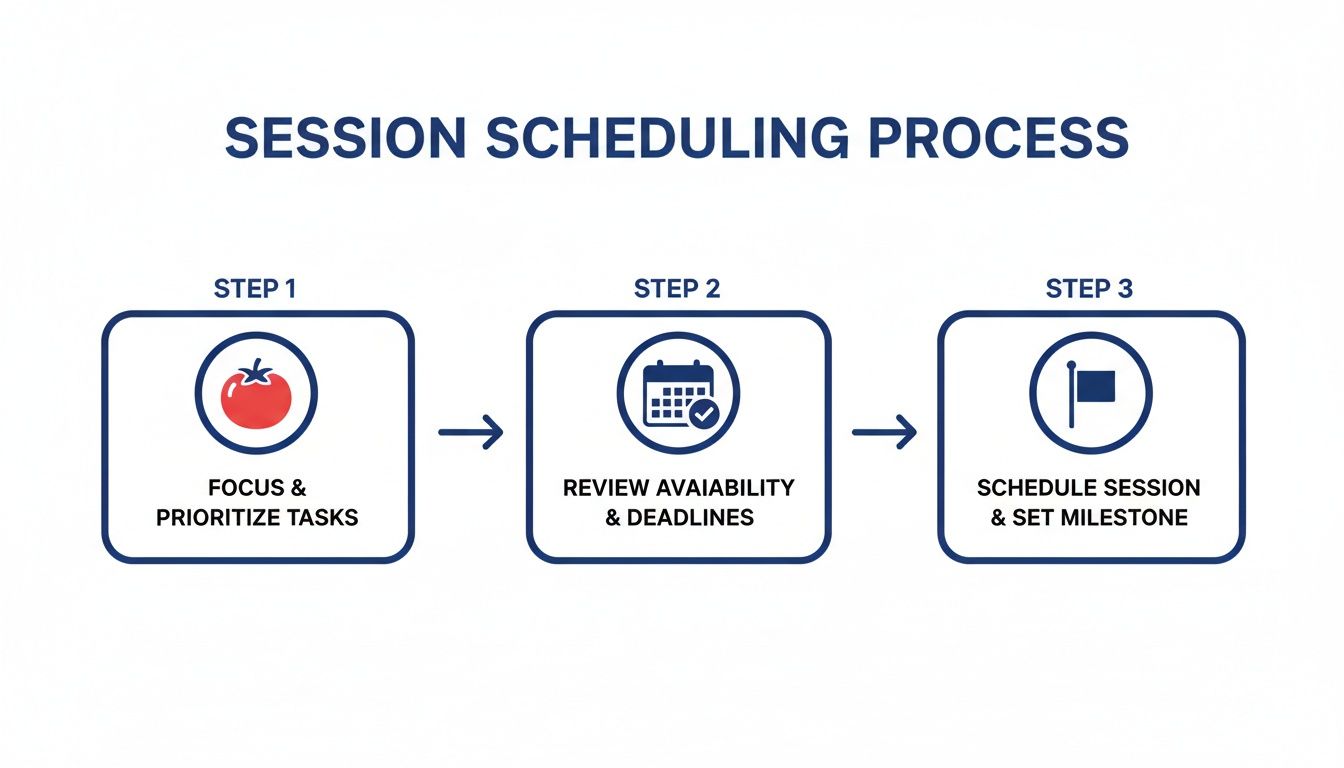
Split study material into blocks that align with your energy levels:
- 3–5 Focus Blocks (25 min each): Tackle single ideas.
- 5-Minute Breaks: Stand, stretch, hydrate.
- Weekly Review (60–90 min): Reinforce that week’s topics.
- Monthly Milestone Quiz: Test full sections.
This structure can boost study time by 10–30% and cut fatigue by 40%. Learn more about these productivity gains in the full research report.
Tracking Session Performance
Log topic, difficulty, and actual focus spans. HoverNotes auto-timestamps start and end times and embeds screenshots into tasks. Tag sections as #easy or #hard for prioritized review.
| Day | Focus Blocks | Review Time |
|---|---|---|
| Monday | 3 × 25 min | 60 min |
| Wednesday | 4 × 25 min | 60 min |
| Friday | 5 × 25 min | 90 min |
| Sunday | 2 × 25 min | 120 min |
Adjust the plan to match exam weights and your peak hours. For pacing Udemy content, see learning effectively from Udemy videos.
Integrating Active Recall And Spaced Repetition
Convert each section into self-test prompts tied to your captured visuals.

Formatting Your Q&A Sections
Use collapsible blocks:
- Day 1 Review: Core definitions and key ideas
- Day 7 Review: Low-stakes quizzes on details
- Day 30 Review: Apply concepts to new scenarios
Crafting Effective Prompts
Mix question types:
- Open-Ended: “Explain how X algorithm handles edge cases.”
- Fill-in-the-Blank: key terms.
- Diagram-Based: reference timestamped screenshots.
Research shows spaced quizzes deliver 0.30–0.50 effect-size gains and help learners retain 20–50% more after a month.
“Regular retrieval schedules reveal gaps you miss in simple review.”
Automating Review Sessions In Obsidian
Tag your prompts with #review1d, #review7d, and #review30d. Use plugins like Obsidian Reminder or Tasks to trigger calendar alerts. Each question pops up exactly when it’s due—no extra work.
Check out how to take study notes efficiently for more on capturing and organizing prompts in Markdown.
Embedding Checkpoints And Feedback Loops
Insert weekly mini-quizzes to expose misunderstandings early.
Weekly Quiz Templates
Create 3–5 questions per unit, focused on core concepts and visuals:
- What are the main stages of the Krebs cycle?
- How does binary search handle boundary conditions?
- Identify the marked regions in this anatomy diagram at 12:34.
If your score falls below 70%, do targeted fixes: replay clips, recapture screenshots, and write bullet summaries tagged for review. Frequent formative checks can raise final-course results by 0.15–0.35 standard deviations. Read more on BNY.
Tracking Progress In Obsidian
Use a dashboard with Dataview or inline lists. Flag topics above 60% error rates and schedule extra review.
- Enzyme kinetics: Week 1 – 45%, Week 2 – 20%
- Sorting algorithms: Week 1 – 50%, Week 2 – 15%
Tags like #remediation and #mastery let you filter weak spots and track improvements automatically.
If you use Obsidian for learning, HoverNotes saves notes directly to your vault. You can try it free — 20 minutes of AI credits, no credit card required. Get started at HoverNotes