YouTube Note Taking: Best Tools and Methods for Learners
Explore youtube notes / youtube note taking tips and tools to boost retention and organize your learning from videos.
By HoverNotes Team•18 min read
YouTube is a huge classroom, but watching doesn't equal learning. Most people forget what they've seen within a week because passive viewing has a massive retention problem. To actually remember and use the information, you need to take notes.
But the manual process is a pain. Constantly pausing and rewinding breaks your focus. Scribbling in a notebook while watching is awkward. Taking screenshots leaves you with a folder of images disconnected from your notes. A good system for YouTube note taking should capture not just what's said, but what's shown—the diagrams, code snippets, and key visuals that transcripts alone miss.
This guide reviews the best tools for turning YouTube viewing into a structured learning process. We'll cover browser extensions, timestamp linking, and screenshot capture for both free and paid options. The focus is on practical workflows for students, self-learners, and professionals who take learning seriously.
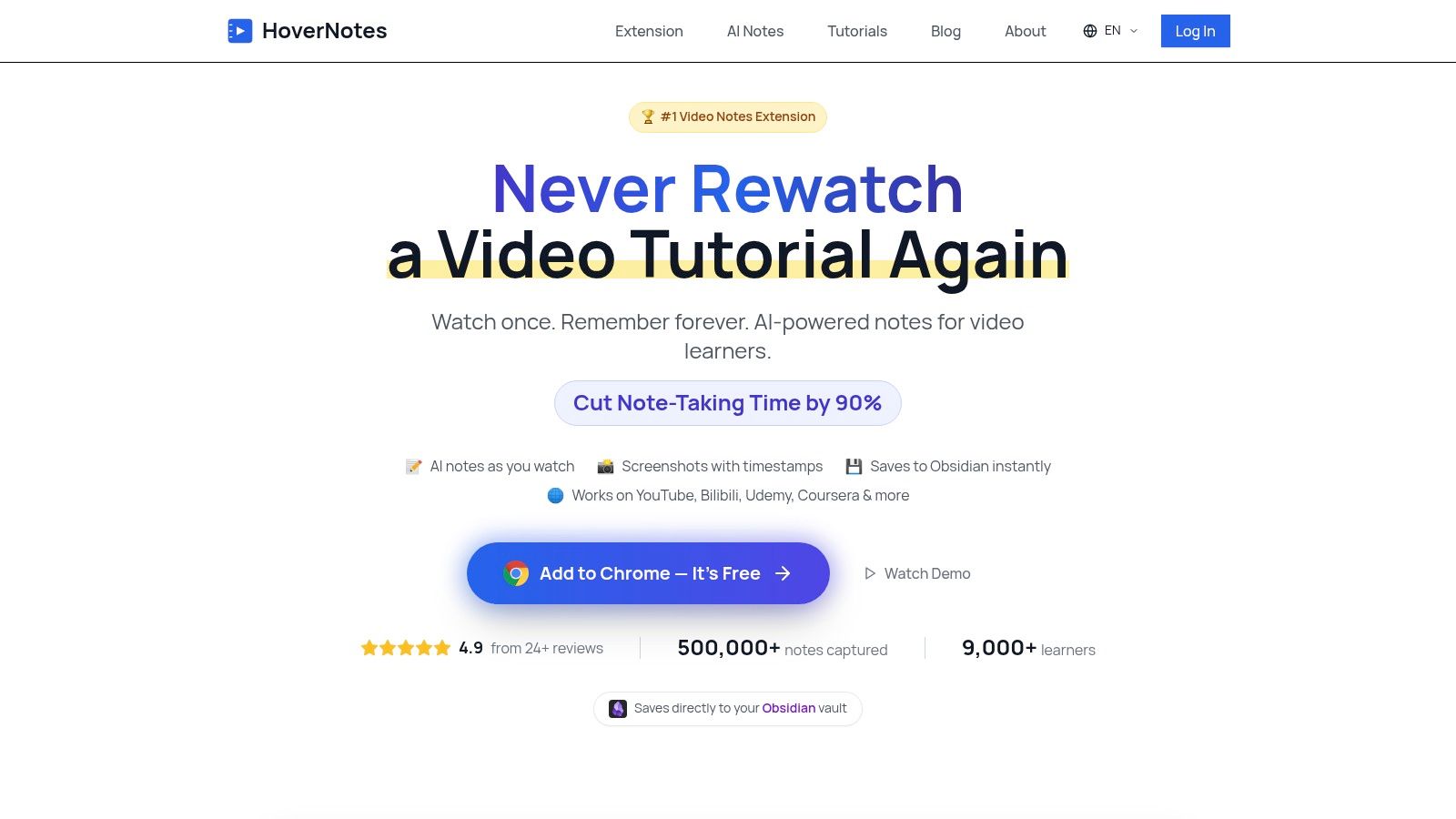
HoverNotes is a Chrome extension built for learners who want to turn video content into permanent, searchable knowledge. It's designed to act like a study partner that watches the video with you, making it highly effective for YouTube note taking, especially for visual subjects like coding tutorials or engineering lectures.
Its main advantage is that it analyzes video frames directly, not just audio transcripts. This means HoverNotes captures on-screen text, code, diagrams, and formulas—visual context that transcript-only tools completely miss. This ensures your notes reflect the full lesson.
HoverNotes adds a distraction-free "Video Mode" to your browser, putting the video on one side and your notes on the other while blocking website ads.
Clickable, Timestamped Screenshots: Capture a screenshot with one click and embed it directly into your notes. Every screenshot includes a clickable timestamp—one click returns you to that exact moment in the video.
Local-First Obsidian Integration: This is a key feature for anyone who values owning their data. Notes save as plain Markdown (.md) files directly to your local file system, like an Obsidian vault. This guarantees privacy and avoids proprietary cloud services. You own the files.
Works on Any Website with Video: While great for YouTube, it works anywhere there's a video—Udemy, Coursera, LinkedIn Learning, university portals, and even local video files on your computer.
Multi-Language AI Notes: Get notes in your preferred language, regardless of the video's original language. You can watch a Japanese tutorial and get notes in English.
Watches the video, not just the transcript, to capture visual content like code and diagrams.
Some users report minor UI quirks that can occasionally interrupt workflow.
Clickable, timestamped screenshots let you jump back to the exact video moment.
Heavy use of AI features requires a upgraded plans.
Saves as local .md files, which is ideal for Obsidian users who want to own their data. Your notes belong to you.
Works on any website with video, including course platforms and local files.
Notes copy cleanly into Notion or Google Docs with formatting intact.
HoverNotes has a entry-level access that includes 20 minutes of AI credits (no credit card needed), and the manual editor with screenshots and video mode is always free. For learners who value visual context and data ownership, it’s a practical tool for active learning. Confirm current options on the HoverNotes pricing page.
Glasp is a browser extension that combines social learning with AI summarization and integrations for Personal Knowledge Management (PKM) tools. It lets you highlight text directly from a video's transcript. Each highlight is automatically timestamped, creating a link that jumps you back to that specific moment in the video. This is useful for capturing exact phrases from lectures.
Glasp has two main functions. First, it’s a productivity tool for getting AI-generated summaries of YouTube videos using models like ChatGPT or Claude. This saves time when deciding if a video is worth watching. Second, it has a public feed where you can see what other Glasp users are highlighting, which can help with discovering new content.
Glasp’s workflow is focused on capturing and exporting knowledge. While watching, you select key sentences from the transcript, and Glasp saves them as timestamped notes.
AI-Powered Summaries: Instantly generate a concise overview of a video's content.
Timestamped Highlighting: Capture specific quotes from the transcript. Clicking a highlight in your notes takes you directly to that point in the video.
Strong PKM Integration: Glasp offers one-click export to tools like Obsidian, Notion, and Roam Research, a critical feature for anyone building a digital knowledge base.
Flexible Export Options: Export your notes in formats like Markdown, CSV, HTML, or JSON.
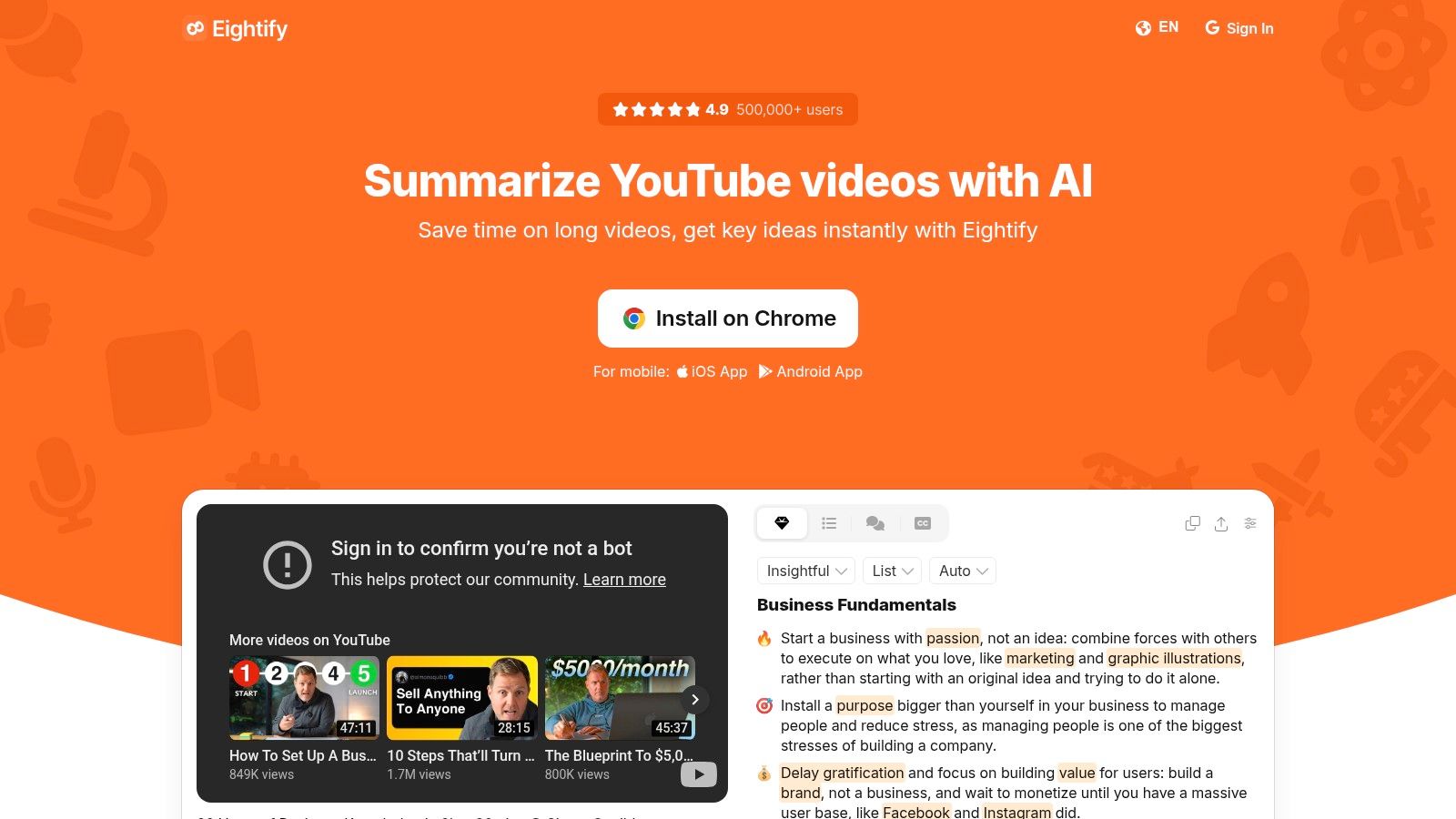
Eightify is a streamlined AI tool for quickly understanding the core message of a YouTube video. It's a simple browser extension and mobile app designed to generate instant summaries broken down into key insights. Its main purpose is efficiency, allowing you to vet long videos in seconds.
Eightify's strength is its focus on summarization. It does one thing well: it condenses video content. Each summary includes timestamped sections, so you can easily navigate to the most relevant parts of the video. This is ideal for learners who just need to extract high-level information quickly. The rise of YouTube video summarizer tools has made this kind of rapid content analysis possible.
Extremely Simple and Fast: The UI is clean, and summaries are generated quickly.
Great for Vetting Content: Perfect for deciding if a long video is relevant before watching it.
Strong Language Support: Extensive multilingual capabilities are a significant advantage.
Cons:
Limited to Summarization: It's not a comprehensive note-taking tool; you can't add your own notes, highlights, or screenshots.
Pricing Isn't Obvious: The entry-level access has limitations, but you must install the extension to see detailed pricing.
You can get started with Eightify by visiting their website: https://eightify.app
#4. ReClipped – Video notes with timestamps, screenshots, and exports
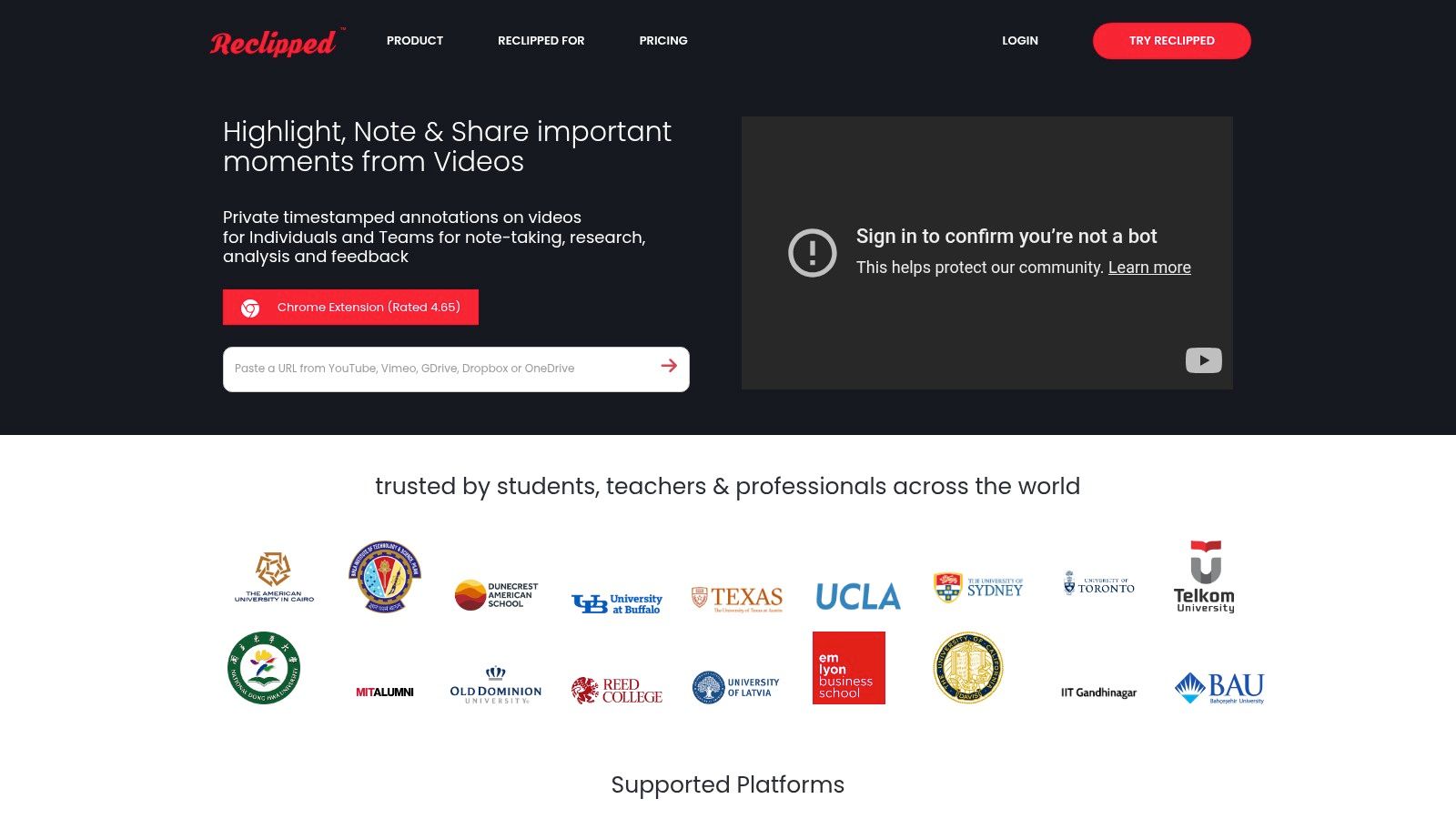
ReClipped is a tool built for deep learning from video, extending beyond YouTube to platforms like Coursera, Udemy, and LinkedIn Learning. It’s a web app and browser extension that lets you capture timestamped text notes, short video highlights, and screenshots. This approach is a good choice for students and professionals working with complex visual material.
ReClipped focuses on creating a comprehensive learning repository. Instead of just text, you can clip 10-30 second video segments or grab a snapshot to capture the full context of a lesson. Notes are organized onto cloud-based "boards," which can be private or shared for collaborative study.
ReClipped’s workflow is centered around capturing different media types from a video. While watching, you can quickly add notes, create highlights, or take screenshots, all of which are timestamped.
Multi-Modal Capturing: Go beyond text with timestamped video highlights and screenshots. This is crucial for capturing diagrams or demonstrations that transcripts miss. For a deeper dive into this, you can learn more about how to screen capture from youtube effectively.
Broad Platform Support: Its main strength is its compatibility with major MOOCs like Coursera and Udemy, in addition to YouTube.
Board Organization & Collaboration: Organize your notes and clips onto different boards and share them with others.
Multiple Export Options: ReClipped supports exporting to PDF and Markdown, and offers direct sync with tools like Notion, Readwise, and Evernote.
#5. NoteGPT – AI suite with YouTube transcript and summary
NoteGPT is a comprehensive AI study workspace that goes beyond simple YouTube note taking. It's a web app and browser extension focused on AI-powered summarization, transcript extraction, and batch processing. This makes it a good option for users who need to digest large volumes of video content, like entire YouTube channels or lecture series.
NoteGPT automates the initial knowledge extraction. Its strength is handling videos without existing subtitles and processing multiple videos at once, saving time for researchers and students. It centralizes your materials, allowing you to chat with videos, documents, and audio files in one interface.
NoteGPT’s workflow is designed for large-scale content processing. You provide a YouTube link (or multiple), and the platform generates a transcript and an AI summary.
Batch and Channel Summarization: A key feature is the ability to summarize entire YouTube playlists or channels.
Transcript and AI Summary: It reliably pulls transcripts and creates summaries for YouTube videos. This process is useful for quickly creating study guides. You can learn more about the specifics of YouTube transcript extraction to understand the underlying technology.
Multi-Format Support: Beyond YouTube, NoteGPT works with other audio and video files.
Additional AI Tools: The platform includes features like AI chat for querying your documents and translation.
Powerful Batch Processing: The multi-video and channel-level summarization saves significant time for heavy users.
Generous Quotas: The pricing tiers offer substantial processing limits.
Versatile Toolset: It supports general audio/video files, useful for learners with course libraries outside of YouTube.
Cons:
Can Be Overkill: For users who just need simple, timestamped notes, the broad suite of AI tools can feel complex.
Cost for Advanced Use: The higher-tier plans can be expensive for casual learners.
You can get started with NoteGPT by visiting their website: https://notegpt.io
#6. Glarity – Summarize YouTube, search results, and pages
Glarity is a rapid comprehension tool that extends beyond YouTube to summarize search results and web pages. It's a browser extension that adds a summary panel directly to the YouTube page, giving you an immediate overview without leaving the site. This is useful for quickly vetting a video's content or extracting key concepts from long lectures.
Glarity is flexible and fast. It offers an "ask-video" feature, allowing you to query the video's content directly to find specific information. It also lets you use its own AI models or connect your personal accounts for services like GPT-4 or Claude 3.5, giving power users control over their AI usage.
Glarity’s workflow provides instant, in-page AI summaries. When you open a YouTube video, the Glarity panel appears with a summary and clickable "key moments."
In-Page Summaries: Get an AI-generated summary right next to the video player.
Ask-Video Capability: Interact with the video's content by asking specific questions. The AI pulls answers from the transcript.
Flexible AI Model Support: Choose between Glarity’s models or integrate your API key for services like OpenAI, Anthropic, or Google.
Broad Application: Glarity also works on Google search results and web pages, making it a versatile tool.
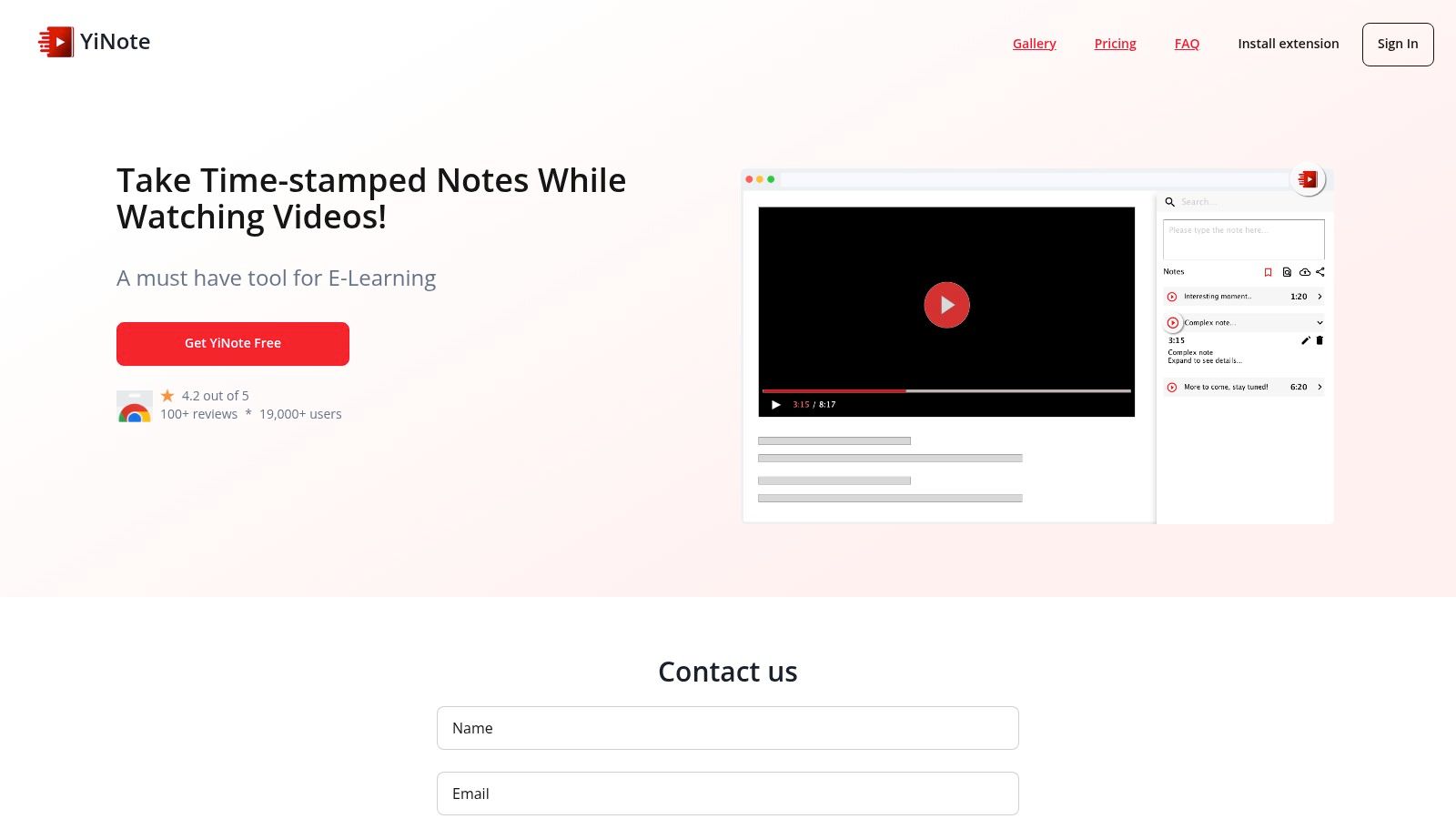
YiNote is a lightweight browser extension designed for one task: taking structured, timestamped notes alongside online videos. It supports YouTube, Vimeo, and BiliBili, offering a clean interface for learners who prefer manual note-taking over AI-generated summaries. Its strength is its simple and direct workflow.
YiNote’s no-frills approach sets it apart. While other tools include AI summaries and social features, YiNote focuses on the manual note-taking experience. The ability to take a quick screenshot, add it to a timestamped note, and organize everything with tags makes it a solid tool for students building a personal knowledge base.
YiNote’s process is built around capturing your own thoughts and visual context. A note-taking panel appears next to your video, ready for input.
In-Page Timestamped Notes: Every note is automatically linked to the current video time. Clicking the timestamp jumps the video back to that moment.
Automatic Screenshots & Rich-Text Editor: A single click captures a screenshot and embeds it in your note. The editor allows for basic formatting.
Cross-Device Sync and Organization: Notes are synced across devices. You can organize video notes into playlists or use tags.
Flexible Export Options: YiNote supports exporting notes to PDF, Markdown, and Evernote. The Markdown export is useful for integrating youtube notes into PKM systems. You can learn more about this workflow with our guide on connecting video notes to Obsidian.
Finding the right tool for YouTube note taking comes down to your learning goals. There is no single "best" solution, only the one that best fits your workflow. The key is to move from passive watching to active learning to turn video content into durable, useful knowledge.
Quick Triage & Summaries: If you just need to understand a video's core message quickly, a dedicated summarizer like Eightify or Glarity works well. They provide rapid, AI-generated overviews.
Casual Highlighting & Social Sharing: To capture key quotes and share insights, a tool like Glasp is a good choice. Its social features are ideal for collaborative learning.
In-Depth Study & Knowledge Building: If you're a student, developer, or professional using YouTube for serious learning, you need more than a summary. This requires features like timestamped notes, screenshot capture, and integration with Personal Knowledge Management (PKM) systems.
For building a long-term knowledge base, a few factors are critical when choosing a tool for YouTube note taking.
Visual Context Capture: Learning technical subjects is often visual. Transcripts miss diagrams, code on the screen, or physical demonstrations. A tool that captures timestamped screenshots provides crucial context that text alone cannot.
Data Ownership & Portability: Where do your notes live? Cloud systems are convenient, but local-first storage means you own your knowledge forever. Tools that save notes as plain Markdown (.md) files, like HoverNotes, give you full control. You can open them in any text editor and integrate them into systems like Obsidian. Your notes belong to you, not a platform.
Workflow Integration: The best tool fits into your existing system. Does it export cleanly to Notion? Can it save directly to your Obsidian vault? Smooth integration means you'll actually use the tool consistently.
The goal of effective YouTube note taking is to bridge the gap between watching a video and retaining its content. Whether you choose a free manual note-taker or an AI assistant, the right tool will eliminate the tedious pausing and rewinding, block distractions, and help you focus on learning.
If you use Obsidian for learning, HoverNotes saves notes directly to your vault. It watches the video to capture visual context, saves notes as local Markdown files you own, and the timestamped screenshot feature alone will save you hours of re-watching. You can try it free at HoverNotes — 20 minutes of AI credits, no credit card required. Confirm current options on the HoverNotes pricing page.
Discover the best video note taking app for your workflow. We compare top tools for students and professionals using Obsidian, Notion, and online courses.
Discover how to learn effectively from Udemy videos with practical, science-backed strategies to stop passively watching and start retaining what you learn.